 双旋网络
双旋网络 Ubuntu上Oracle10g安装指南

<p style="margin: 0.9em 0; line-height: 1.9; font-size: 16px; color: #1f2937;”><pre style="background: #f0e0e4; color: #9e1840; padding: 1.2em; overflow-x: auto; margin: 1.2em 0; font-family: Consolas, monospace; font-size: 14px; line-height: 1.6;”>http://www.oracle.com/technology/software/products/database/oracle10g/index.html
<p style="margin: 0.9em 0; line-height: 1.9; font-size: 16px; color: #1f2937;”><pre style="background: #f0e0e4; color: #9e1840; padding: 1.2em; overflow-x: auto; margin: 1.2em 0; font-family: Consolas, monospace; font-size: 14px; line-height: 1.6;”>http://www.oracle.com/technetwork/database/express-edition/downloads/102xelinsoft-102048.html
<p style="margin: 0.9em 0; line-height: 1.9; font-size: 16px; color: #1f2937;”>根本不好下载,每次注册时都提示用户名已被使用。
<p style="margin: 0.9em 0; line-height: 1.9; font-size: 16px; color: #1f2937;”>用gmail的邮箱,密码8位大写小写数字——by
<p style="margin: 0.9em 0; line-height: 1.9; font-size: 16px; color: #1f2937;”>安装下载的deb包
<p style="margin: 0.9em 0; line-height: 1.9; font-size: 16px; color: #1f2937;”>安装很简单,比如下载的文件在/home/xxx/目录,只要执行即可:
<p style="margin: 0.9em 0; line-height: 1.9; font-size: 16px; color: #1f2937;”><pre style="background: #f0e0e4; color: #9e1840; padding: 1.2em; overflow-x: auto; margin: 1.2em 0; font-family: Consolas, monospace; font-size: 14px; line-height: 1.6;”>sudo dpkg -i /home/xxx/download/oracle-xe-universal_10.2.0.1-1.0_i386.deb
<p style="margin: 0.9em 0; line-height: 1.9; font-size: 16px; color: #1f2937;”>安装的时候需要注意控制台输出,在安装过程中需要设定监听端口和密码。如果没有提示设置,可以手工设置 /etc/init.d/-xe 。安装後如果一切正常的话应该会自动启动,是用ps命令可以查看当前运行的进行,判断是否正确运行:
<p style="margin: 0.9em 0; line-height: 1.9; font-size: 16px; color: #1f2937;”><pre style="background: #f0e0e4; color: #9e1840; padding: 1.2em; overflow-x: auto; margin: 1.2em 0; font-family: Consolas, monospace; font-size: 14px; line-height: 1.6;”>sudo ps aux |grep oracle
<p style="margin: 0.9em 0; line-height: 1.9; font-size: 16px; color: #1f2937;”>输出的结果应该类似如下:
<p style="margin: 0.9em 0; line-height: 1.9; font-size: 16px; color: #1f2937;”><pre style="background: #f0e0e4; color: #9e1840; padding: 1.2em; overflow-x: auto; margin: 1.2em 0; font-family: Consolas, monospace; font-size: 14px; line-height: 1.6;”>oracle 16282 0.0 0.2 22076 6068 ? Ss 22:08 0:00 /usr/lib/o
oracle 16290 0.0 0.4 671464 10248 ? Ss 22:08 0:00 xe_pmon_XE
oracle 16292 0.0 0.4 670772 8828 ? Ss 22:08 0:00 xe_psp0_XE
oracle 16294 0.0 0.9 670772 20028 ? Ss 22:08 0:00 xe_mman_XE
oracle 16296 0.0 0.5 672844 11400 ? Ss 22:08 0:00 xe_dbw0_XE
oracle 16298 0.0 1.3 686324 28228 ? Ss 22:08 0:00 xe_lgwr_XE
oracle 16300 0.0 0.6 670780 14000 ? Ss 22:08 0:00 xe_ckpt_XE
oracle 16302 0.0 1.4 671316 29752 ? Ss 22:08 0:00 xe_smon_XE
oracle 16304 0.0 0.6 670776 14096 ? Ss 22:08 0:00 xe_reco_XE
oracle 16306 0.0 1.1 672376 22916 ? Ss 22:08 0:00 xe_cjq0_XE
oracle 16308 0.2 2.0 673520 43060 ? Ss 22:08 0:00 xe_mmon_XE
oracle 16310 0.0 0.4 670772 9944 ? Ss 22:08 0:00 xe_mmnl_XE
oracle 16312 0.0 0.4 671440 8952 ? Ss 22:08 0:00 xe_d000_XE
oracle 16314 0.0 0.4 671324 8668 ? Ss 22:08 0:00 xe_s000_XE
oracle 16316 0.0 0.4 671324 8676 ? Ss 22:08 0:00 xe_s001_XE
oracle 16318 0.0 0.4 671320 8668 ? Ss 22:08 0:00 xe_s002_XE
oracle 16320 0.0 0.4 671320 8676 ? Ss 22:08 0:00 xe_s003_XE
oracle 16333 0.0 0.4 670772 9956 ? Ss 22:08 0:00 xe_qmnc_XE
oracle 16353 0.0 0.5 670772 11000 ? Ss 22:08 0:00 xe_q000_XE
oracle 16358 0.0 0.4 670772 9284 ? Ss 22:08 0:00 xe_q001_XE
<p style="margin: 0.9em 0; line-height: 1.9; font-size: 16px; color: #1f2937;”>默认安装好以後,会自动运行,如果没有启动起来,需要手动去运行init.d下面的脚本:
<p style="margin: 0.9em 0; line-height: 1.9; font-size: 16px; color: #1f2937;”><pre style="background: #f0e0e4; color: #9e1840; padding: 1.2em; overflow-x: auto; margin: 1.2em 0; font-family: Consolas, monospace; font-size: 14px; line-height: 1.6;”>sudo /etc/init.d/oracle-xe start
<p style="margin: 0.9em 0; line-height: 1.9; font-size: 16px; color: #1f2937;”>如果输出如下则表示启动成功:
<p style="margin: 0.9em 0; line-height: 1.9; font-size: 16px; color: #1f2937;”><pre style="background: #f0e0e4; color: #9e1840; padding: 1.2em; overflow-x: auto; margin: 1.2em 0; font-family: Consolas, monospace; font-size: 14px; line-height: 1.6;”>Starting Oracle Net Listener.
Starting Oracle Database 10g Express Edition Instance.
<p style="margin: 0.9em 0; line-height: 1.9; font-size: 16px; color: #1f2937;”>使用网页浏览器访问的http管理界面
<p style="margin: 0.9em 0; line-height: 1.9; font-size: 16px; color: #1f2937;”>启动或者其他浏览器<span style="color: black; background-color: #00FF7F; font-weight: bold;”>Ubuntu上Oracle10g安装指南,在地址栏输入地址(此处的8080端口是在安装时给定的):
<p style="margin: 0.9em 0; line-height: 1.9; font-size: 16px; color: #1f2937;”>:8080/apex
<p style="margin: 0.9em 0; line-height: 1.9; font-size: 16px; color: #1f2937;”>就可以进入到管理界面,在这个管理界面中,可以完成如创建数据库、用户管理、表管理和存储与运行时管理的诸多配置工作。注意默认的安装设定sys/是同一个密码,这个要注意。
<p style="margin: 0.9em 0; line-height: 1.9; font-size: 16px; color: #1f2937;”>详细安装方式请参考的官方说明。
<p style="margin: 0.9em 0; line-height: 1.9; font-size: 16px; color: #1f2937;”>安装企业版的 10g
<p style="margin: 0.9em 0; line-height: 1.9; font-size: 16px; color: #1f2937;”> by , 2007-10-15〔)
<p style="margin: 0.9em 0; line-height: 1.9; font-size: 16px; color: #1f2937;”>今天终于在.04上成功安装。为了安装,花了不少时间到网上查资料,不过更多的时间用于自己的真正实践,当中走了不少的弯路,现在把安装过程记下来。(我一共在两台机器上安装了三次,这篇文章是在安装第三次的时候一边操作一边在另外的电脑上写的) 在网上有不少的安装教程,但这些教程更多的只是针对较低版本的(如6.X,5.X等等),而且安装的过程中也有些问题是没有描述和解决的。因此,我觉得有必要自己写一下安装我的实践过程,当然<strong style="font-weight: 700; color: #b32050;”>oracle 10g 网盘 下载,我主要还是参考了孙高勇先生的《 10g for 安装指南》的内容。 现在开始吧!
<p style="margin: 0.9em 0; line-height: 1.9; font-size: 16px; color: #1f2937;”>第一步,我们需要一个
<p style="margin: 0.9em 0; line-height: 1.9; font-size: 16px; color: #1f2937;”>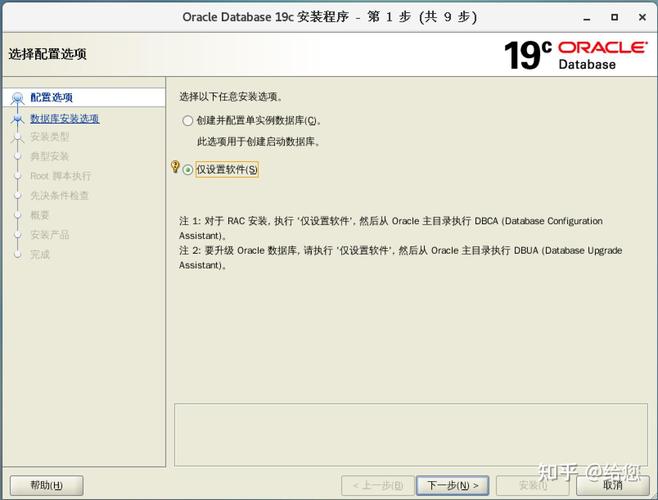
<p style="margin: 0.9em 0; line-height: 1.9; font-size: 16px; color: #1f2937;”>当然在网上可以免费下载得到,我用的是桌面版,而不是网站上提供的服务器版,很多刚由转过来的朋友可能会认为服务器版总会比桌面版多些功能,为此而下载了服务版来用。其实网上提供的下载却不然,服务器版只不过比桌面版多了amp的软件(a-, m-mysql, p-php),但却没有图形用户界面(可以另外再安装,但比较麻烦)。为此,我使用了桌面版的来完成这次的安装。安装的时候虽然有中文可以选择,但我还是选用了英文,这不是我的英文特别好(再好也好不过母语)的缘故,而是因为的汉化未如理想,汉字的支持也不怎么样(特别是在纯 CUI模式下)。所以还是用英文会更好(不必担心,在英文版下一样可以用中文的输入法,同样也可以让支持中文),要安装<strong style="font-weight: 700; color: #b32050;”>oracle 10g 网盘 下载,可以参考网上的其它教程。
<p style="margin: 0.9em 0; line-height: 1.9; font-size: 16px; color: #1f2937;”>第二步,安装必需的包
<p style="margin: 0.9em 0; line-height: 1.9; font-size: 16px; color: #1f2937;”><pre style="background: #f0e0e4; color: #9e1840; padding: 1.2em; overflow-x: auto; margin: 1.2em 0; font-family: Consolas, monospace; font-size: 14px; line-height: 1.6;”>apt-get install gcc make binutils lesstif2 libc6 libc6-dev rpm libmotif3 libaio1 libstdc++6 alien
<p style="margin: 0.9em 0; line-height: 1.9; font-size: 16px; color: #1f2937;”>Note: 在我使用 10.10安装时,会报一个到错误。这是因为新版本到默认安装了++6,而安装程序要使用的是++5,所以如果遇到这个错误可以执行sudo apt-get ++5然后在安装程序的报错对话框中点retry就可以继续了。
<p style="margin: 0.9em 0; line-height: 1.9; font-size: 16px; color: #1f2937;”>64位:sudo apt-get gcc -dev make libc6 libc6-i386 libc6-dev-i386 ++5 ++6 ia32-libs
<p style="margin: 0.9em 0; line-height: 1.9; font-size: 16px; color: #1f2937;”>第三步,创建用户
<p style="margin: 0.9em 0; line-height: 1.9; font-size: 16px; color: #1f2937;”><pre style="background: #f0e0e4; color: #9e1840; padding: 1.2em; overflow-x: auto; margin: 1.2em 0; font-family: Consolas, monospace; font-size: 14px; line-height: 1.6;”># adduser oracle
正在添加用户”oracle”…
正在添加新组”oracle” (1001)…
正在添加新用户”oracle” (1002) 到组”oracle”…
创建主目录”/home/oracle”…
正在从”/etc/skel”复制文件…
输入新的 UNIX 密码:
重新输入新的 UNIX 密码:
passwd:已成功更新密码
Changing the user information for oracle
Enter the new value, or press ENTER for the default
Full Name []: oracle
Room Number []:
Work Phone []:
Home Phone []:
Other []:
<p style="margin: 0.9em 0; line-height: 1.9; font-size: 16px; color: #1f2937;”> 命令系统会自动创建用户的文件
<p style="margin: 0.9em 0; line-height: 1.9; font-size: 16px; color: #1f2937;”>第四步,修改设置A.设置swap区
<p style="margin: 0.9em 0; line-height: 1.9; font-size: 16px; color: #1f2937;”>至少需要500M的内存和400M的交换空间,要查看swap区是否足够大小,用 fdisk -l 命令去查,如果小于400M的空间,那么就要增加swap的大小 重设交换分区可以使用如下操作:
<p style="margin: 0.9em 0; line-height: 1.9; font-size: 16px; color: #1f2937;”><pre style="background: #f0e0e4; color: #9e1840; padding: 1.2em; overflow-x: auto; margin: 1.2em 0; font-family: Consolas, monospace; font-size: 14px; line-height: 1.6;”>dd if=/dev/zero of=tmp_swap bs=1k count=900000
chmod 600 tmp_swap
mkswap tmp_swap
swapon tmp_swap
<p style="margin: 0.9em 0; line-height: 1.9; font-size: 16px; color: #1f2937;”>完成安装以後,可以释放这个空间:
<p style="margin: 0.9em 0; line-height: 1.9; font-size: 16px; color: #1f2937;”><pre style="background: #f0e0e4; color: #9e1840; padding: 1.2em; overflow-x: auto; margin: 1.2em 0; font-family: Consolas, monospace; font-size: 14px; line-height: 1.6;”>swapoff tmp_swap
rm tmp_swap
<p style="margin: 0.9em 0; line-height: 1.9; font-size: 16px; color: #1f2937;”>count 值是根据你需要调整的交换分区大小而定。
<p style="margin: 0.9em 0; line-height: 1.9; font-size: 16px; color: #1f2937;”>B.修改 .conf
<p style="margin: 0.9em 0; line-height: 1.9; font-size: 16px; color: #1f2937;”>添加如下的行到/etc/.conf 中:
<p style="margin: 0.9em 0; line-height: 1.9; font-size: 16px; color: #1f2937;”><pre style="background: #f0e0e4; color: #9e1840; padding: 1.2em; overflow-x: auto; margin: 1.2em 0; font-family: Consolas, monospace; font-size: 14px; line-height: 1.6;”>kernel.shmmax = 3147483648
kernel.shmmni = 4096
kernel.shmall = 2097152
kernel.sem = 250 32000 100 128
fs.<span style="color: black; background-color: #00BFFF; font-weight: bold;”>file-max = 65536
net.ipv4.ip_local_port_range = 1024 65000
<p style="margin: 0.9em 0; line-height: 1.9; font-size: 16px; color: #1f2937;”>C.修改 .conf
<p style="margin: 0.9em 0; line-height: 1.9; font-size: 16px; color: #1f2937;”>添加如下的行到/etc//.conf中:
<p style="margin: 0.9em 0; line-height: 1.9; font-size: 16px; color: #1f2937;”><pre style="background: #f0e0e4; color: #9e1840; padding: 1.2em; overflow-x: auto; margin: 1.2em 0; font-family: Consolas, monospace; font-size: 14px; line-height: 1.6;”>* soft nproc 2407
* hard nproc 16384
* soft no<span style="color: black; background-color: #00BFFF; font-weight: bold;”>file 1024
* hard no<span style="color: black; background-color: #00BFFF; font-weight: bold;”>file 65536
<p style="margin: 0.9em 0; line-height: 1.9; font-size: 16px; color: #1f2937;”>D.让修改生效
<p style="margin: 0.9em 0; line-height: 1.9; font-size: 16px; color: #1f2937;”>修改了以上文件後,必须让其生效,或重启系统,或切换到 root 用户下用以下的方式改变内核运行参数: -p
<p style="margin: 0.9em 0; line-height: 1.9; font-size: 16px; color: #1f2937;”>E.产生相应的软连接
<p style="margin: 0.9em 0; line-height: 1.9; font-size: 16px; color: #1f2937;”>创建一个文件如 kk,内容如下:
<p style="margin: 0.9em 0; line-height: 1.9; font-size: 16px; color: #1f2937;”><pre style="background: #f0e0e4; color: #9e1840; padding: 1.2em; overflow-x: auto; margin: 1.2em 0; font-family: Consolas, monospace; font-size: 14px; line-height: 1.6;”>#!/bin/bash
ln -s /usr/bin/awk /bin/awk
ln -s /usr/bin/rpm /bin/rpm
ln -s /usr/bin/basename /bin/basename
mkdir /etc/rc.d
ln -s /etc/rc0.d /etc/rc.d/rc0.d
ln -s /etc/rc2.d /etc/rc.d/rc2.d
ln -s /etc/rc3.d /etc/rc.d/rc3.d
ln -s /etc/rc4.d /etc/rc.d/rc4.d
ln -s /etc/rc5.d /etc/rc.d/rc5.d
ln -s /etc/rc6.d /etc/rc.d/rc6.d
ln -s /etc/init.d /etc/rc.d/init.d
<p style="margin: 0.9em 0; line-height: 1.9; font-size: 16px; color: #1f2937;”>创建後,切换到 root 用户去执行一下。
<p style="margin: 0.9em 0; line-height: 1.9; font-size: 16px; color: #1f2937;”>F.创建的版本声明文件
<p style="margin: 0.9em 0; line-height: 1.9; font-size: 16px; color: #1f2937;”>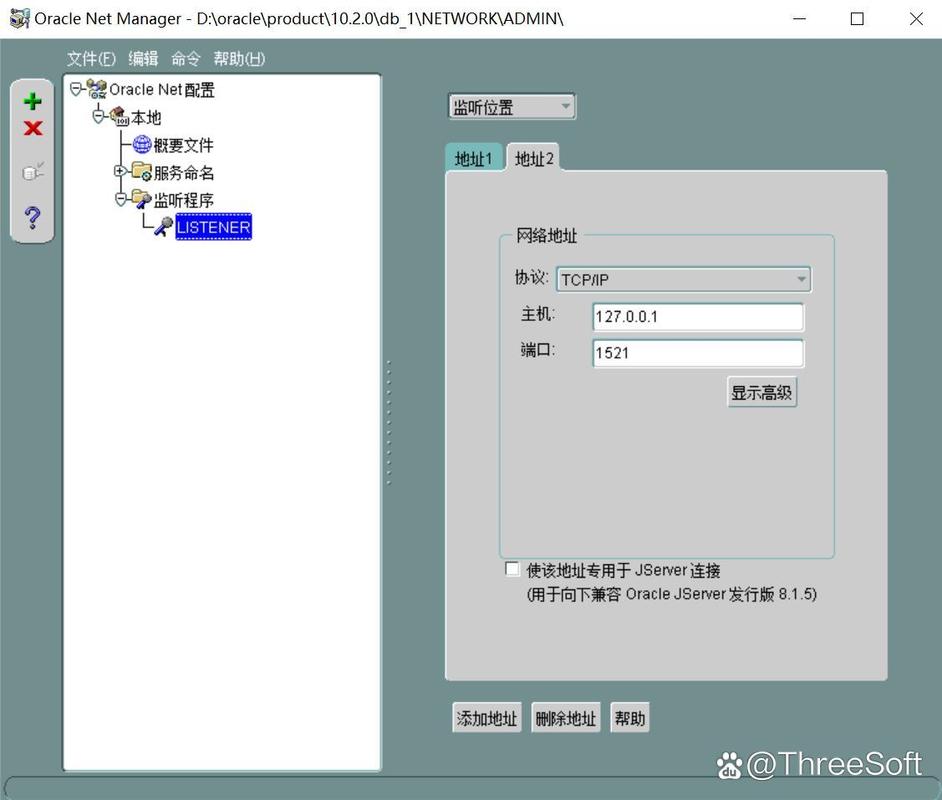
<p style="margin: 0.9em 0; line-height: 1.9; font-size: 16px; color: #1f2937;”>在/etc/-中添加以下语句,以使安装程序认为正在一个的系统上安装:
<p style="margin: 0.9em 0; line-height: 1.9; font-size: 16px; color: #1f2937;”><pre style="background: #f0e0e4; color: #9e1840; padding: 1.2em; overflow-x: auto; margin: 1.2em 0; font-family: Consolas, monospace; font-size: 14px; line-height: 1.6;”>Red Hat Linux release 3.1 (drupal)
<p style="margin: 0.9em 0; line-height: 1.9; font-size: 16px; color: #1f2937;”>G.修改环境变量
<p style="margin: 0.9em 0; line-height: 1.9; font-size: 16px; color: #1f2937;”>编辑 /home//.,增加以下 的内容。 (注意,在 7.04中用户的文件已改名为~/.,有很多安装教程都是用 ~/.,在7.04中不行的)
<p style="margin: 0.9em 0; line-height: 1.9; font-size: 16px; color: #1f2937;”><pre style="background: #f0e0e4; color: #9e1840; padding: 1.2em; overflow-x: auto; margin: 1.2em 0; font-family: Consolas, monospace; font-size: 14px; line-height: 1.6;”>export ORACLE_HOME=/opt/ora10
export ORACLE_OWNER=oracle
export ORACLE_SID=ora1
export ORACLE_TERM=xterm
export PATH=$ORACLE_HOME/bin:$ORACLE_HOME/Apache/Apache/bin:$PATH
<p style="margin: 0.9em 0; line-height: 1.9; font-size: 16px; color: #1f2937;”>第五步,开始安装
<p style="margin: 0.9em 0; line-height: 1.9; font-size: 16px; color: #1f2937;”>注销原来的用户<strong style="font-weight: 700; color: #b32050;”>oracle 10g 网盘 下载,改用用户登录。用env查看一下环境变量是否生效。 然後进行/中进行安装,执行安装脚本时还需要以root权限创建目录/opt/ora10
<p style="margin: 0.9em 0; line-height: 1.9; font-size: 16px; color: #1f2937;”><pre style="background: #f0e0e4; color: #9e1840; padding: 1.2em; overflow-x: auto; margin: 1.2em 0; font-family: Consolas, monospace; font-size: 14px; line-height: 1.6;”>sudo mkdir /opt/ora10
sudo chown -R oracle:oracle /opt/ora10
sudo chmod -R 770 /opt/ora10
cd/ora_ins_disk
./runInstaller
<p style="margin: 0.9em 0; line-height: 1.9; font-size: 16px; color: #1f2937;”>在安装过程中,请使用<span style="color: black; background-color: #00FF7F; font-weight: bold;”>Ubuntu上Oracle10g安装指南,然後一路按默认的设置进行往下设置,到窗单名为 “ ”的时候,要修改以下设置: Set 中选择 在安装的後期,系统提示需要用 root 用户去运行两个脚本文件.sh和root.sh,安装完毕後,是正常启动着的,你可以试一下连接数据库,同时也可以使用浏览器去设置一下,(url:http: //:1158/em/)( 10g与之前的版本都不一样,使用WEB页的企业管理器来代替以前的C/S版JAVA企业管理器)
<p style="margin: 0.9em 0; line-height: 1.9; font-size: 16px; color: #1f2937;”><span style="color: black; background-color: #00BFFF; font-weight: bold;”>第六步,设置自启动
<p style="margin: 0.9em 0; line-height: 1.9; font-size: 16px; color: #1f2937;”><span style="color: white; background-color: #FF6347; font-weight: bold;”>创建自启动脚本 创建 脚本到/etc/init.d/,内容如下
<p style="margin: 0.9em 0; line-height: 1.9; font-size: 16px; color: #1f2937;”><pre style="background: #f0e0e4; color: #9e1840; padding: 1.2em; overflow-x: auto; margin: 1.2em 0; font-family: Consolas, monospace; font-size: 14px; line-height: 1.6;”>#!/bin/bash
#
<span style="color: black; background-color: #00BFFF; font-weight: bold;”># /etc/init.d/oracledb
#
<span style="color: black; background-color: #7CFC00; font-weight: bold;”># Run-level Startup script for the Oracle Instance, Listener, and
<span style="color: yellow; background-color: #007BFF; font-weight: bold;”># Web Interface
export ORACLE_HOME=/opt/ora10
export ORACLE_SID=ora1
export PATH=$ORACLE_HOME/bin:$ORACLE_HOME/Apache/Apache/bin:$PATH
<span style="color: black; background-color: #7FFF00; font-weight: bold;”>ORA_OWNR=”oracle”
<span style="color: black; background-color: #FFD700; font-weight: bold;”># if the executables do not exist — display error
<span style="color: black; background-color: #7FFF00; font-weight: bold;”>if [ ! -f $ORACLE_HOME/bin/dbstart -o ! -d $ORACLE_HOME ]
<span style="color: black; background-color: #00BFFF; font-weight: bold;”>then
<span style="color: black; background-color: #FF1493; font-weight: bold;”>echo “[Oracle Error] dbstart command does not exist, quitting…”
<span style="color: white; background-color: #FF00FF; font-weight: bold;”>exit 1
<span style="color: black; background-color: #00FF7F; font-weight: bold;”>else
<span style="color: black; background-color: #00BFFF; font-weight: bold;”>echo “[Oracle Info] dbstart existance check OK”
<span style="color: black; background-color: #00BFFF; font-weight: bold;”>fi
<span style="color: black; background-color: #7FFF00; font-weight: bold;”># depending on parameter — startup, shutdown, restart
<span style="color: black; background-color: #00FF7F; font-weight: bold;”># of the instance and listener or usage display
<span style="color: black; background-color: #00BFFF; font-weight: bold;”>case “$1” in
<span style="color: white; background-color: #FF4500; font-weight: bold;”>start)
<span style="color: black; background-color: #7FFF00; font-weight: bold;”># Oracle listener and instance startup
<span style="color: black; background-color: #ADFF2F; font-weight: bold;”>echo “[Oracle Info] Starting oracle”
<span style="color: white; background-color: #FF69B4; font-weight: bold;”>echo “[Oracle Info] su $ORA_OWNR -c “”$ORACLE_HOME/bin/lsnrctl start”
<span style="color: white; background-color: #FF8C00; font-weight: bold;”>su $ORA_OWNR -c “$ORACLE_HOME/bin/lsnrctl start”
<span style="color: white; background-color: #FF6347; font-weight: bold;”>if [ $? -ne 0 ]
<span style="color: black; background-color: #00BFFF; font-weight: bold;”>then
<span style="color: black; background-color: #00FF7F; font-weight: bold;”>echo “[Oracle Error] listener failed to start”
<span style="color: white; background-color: #FF00FF; font-weight: bold;”>exit 1
<span style="color: black; background-color: #00FF7F; font-weight: bold;”>else
<span style="color: black; background-color: #00FF7F; font-weight: bold;”>echo “[Oracle Info] listener start OK”
<span style="color: black; background-color: #00BFFF; font-weight: bold;”>fi
<span style="color: white; background-color: #FF8C00; font-weight: bold;”>su $ORA_OWNR -c “$ORACLE_HOME/bin/dbstart $ORACLE_HOME”
echo “[Oracel Info] su $ORA_OWNR -c “”$ORACLE_HOME/bin/dbstart $ORACLE_HOME”
<span style="color: white; background-color: #FF6347; font-weight: bold;”>if [ $? -ne 0 ]
<span style="color: black; background-color: #00BFFF; font-weight: bold;”>then
echo “[Oracle Error] dbstart failed to start”
<span style="color: white; background-color: #FF00FF; font-weight: bold;”>exit 1
<span style="color: black; background-color: #00FF7F; font-weight: bold;”>else
echo “[Oracle Info] dbstart OK”
<span style="color: black; background-color: #00BFFF; font-weight: bold;”>fi
touch /var/lock/oracle
echo “[Oracle Info]su $ORA_OWNR -c “”$ORACLE_HOME/bin/emctl start dbconsole”
su $ORA_OWNR -c “$ORACLE_HOME/bin/emctl start dbconsole”
<span style="color: white; background-color: #FF6347; font-weight: bold;”>if [ $? -ne 0 ]
<span style="color: black; background-color: #00BFFF; font-weight: bold;”>then
echo “[Oracle Error] dbconsole failed to start”
<span style="color: white; background-color: #FF00FF; font-weight: bold;”>exit 1
<span style="color: black; background-color: #00FF7F; font-weight: bold;”>else
echo “[Oracle Info] dbconsole start OK”
<span style="color: black; background-color: #00BFFF; font-weight: bold;”>fi
echo “[Oracle Info] Starting oracle ended OK”
;;
stop)
# Oracle listener and instance shutdown
echo “[Oracle Info] Shutdown Oracle: ”
echo “[Oracle Info] su $ORA_OWNR -c “”$ORACLE_HOME/bin/lsnrctl stop”
su $ORA_OWNR -c “$ORACLE_HOME/bin/lsnrctl stop”
echo “[Oracle Info] su $ORA_OWNR -c “”$ORACLE_HOME/bin/dbshut $ORACLE_HOME”
su $ORA_OWNR -c “$ORACLE_HOME/bin/dbshut $ORACLE_HOME”
rm -f /var/lock/oracle
echo “[Oracle Info]su $ORA_OWNR -c “”$ORACLE_HOME/bin/emctl stop dbconsole”
su $ORA_OWNR -c “$ORACLE_HOME/bin/emctl stop dbconsole”
echo “[Oracle Info] Shutdown Oracle ended OK”
;;
reload|re<span style="color: white; background-color: #FF4500; font-weight: bold;”>start)
echo “[Oracle Info]: $1 oracle”
$0 stop
$0 start
;;
*)
echo “[Oracle Error] Unknown context: $1”
echo “[Oracle Info] Usage: `basename $0` start|stop|restart|reload”
<span style="color: white; background-color: #FF00FF; font-weight: bold;”>exit 1
esac
exit 0
<p style="margin: 0.9em 0; line-height: 1.9; font-size: 16px; color: #1f2937;”>设置权限,放到启动脚本中去
<p style="margin: 0.9em 0; line-height: 1.9; font-size: 16px; color: #1f2937;”><pre style="background: #f0e0e4; color: #9e1840; padding: 1.2em; overflow-x: auto; margin: 1.2em 0; font-family: Consolas, monospace; font-size: 14px; line-height: 1.6;”>chmod 755 /etc/init.d/oracledb
update-rc.d oracledb defaults 99
<p style="margin: 0.9em 0; line-height: 1.9; font-size: 16px; color: #1f2937;”>还需要编辑一下/etc/,把其中的N改成Y,不然上述脚本中所调用的$/bin/在执行时不会自动启动相应的数据库实例(这里的数据库实例是ora1)。文件内容如下:
<p style="margin: 0.9em 0; line-height: 1.9; font-size: 16px; color: #1f2937;”><pre style="background: #f0e0e4; color: #9e1840; padding: 1.2em; overflow-x: auto; margin: 1.2em 0; font-family: Consolas, monospace; font-size: 14px; line-height: 1.6;”>#
# This <span style="color: black; background-color: #00BFFF; font-weight: bold;”>file is used by ORACLE utilities. It is created by root.sh
# and updated by the Database Con<span style="color: black; background-color: #00BFFF; font-weight: bold;”>figuration Assistant when creating
# a database.
# A colon, ‘:’, is used as the <span style="color: black; background-color: #00BFFF; font-weight: bold;”>field terminator. A new line terminates
# the entry. Lines beginning with a pound sign, ‘#‘, are comments.
#
# Entries are of the form:
# $ORACLE_SID:$ORACLE_HOME::
#
# The <span style="color: black; background-color: #00BFFF; font-weight: bold;”>first and second <span style="color: black; background-color: #00BFFF; font-weight: bold;”>fields are the system identi<span style="color: black; background-color: #00BFFF; font-weight: bold;”>fier and home
# directory of the database respectively. The third <span style="color: black; background-color: #00BFFF; font-weight: bold;”>filed indicates
# to the dbstart utility that the database should , “Y”, or should not,
# “N”, be brought up at system boot time.
#
# Multiple entries with the same $ORACLE_SID are not allowed.
#
#
ora1:/opt/ora10:Y
<p style="margin: 0.9em 0; line-height: 1.9; font-size: 16px; color: #1f2937;”>我的 的安装盘中可能有些问题,所以如果只用上述的脚本是不能启动 的,要修改一下: 修改 /opt/ora10/bin/文件 查找:(本步骤修改后需重新安装?——(不需要重新安装呀Sutra 2010年6月10日 (四) 21:31 (CST)))
<p style="margin: 0.9em 0; line-height: 1.9; font-size: 16px; color: #1f2937;”><pre style="background: #f0e0e4; color: #9e1840; padding: 1.2em; overflow-x: auto; margin: 1.2em 0; font-family: Consolas, monospace; font-size: 14px; line-height: 1.6;”># Set this to bring up Oracle Net Listener
ORACLE_HOME_LISTNER=/ade/vikrkuma_new/oracle
<p style="margin: 0.9em 0; line-height: 1.9; font-size: 16px; color: #1f2937;”>将其改为:
<p style="margin: 0.9em 0; line-height: 1.9; font-size: 16px; color: #1f2937;”><pre style="background: #f0e0e4; color: #9e1840; padding: 1.2em; overflow-x: auto; margin: 1.2em 0; font-family: Consolas, monospace; font-size: 14px; line-height: 1.6;”># Set this to bring up Oracle Net Listener
ORACLE_HOME_LISTNER=$ORACLE_HOME
<p style="margin: 0.9em 0; line-height: 1.9; font-size: 16px; color: #1f2937;”>设置後,测试一下
<p style="margin: 0.9em 0; line-height: 1.9; font-size: 16px; color: #1f2937;”><pre style="background: #f0e0e4; color: #9e1840; padding: 1.2em; overflow-x: auto; margin: 1.2em 0; font-family: Consolas, monospace; font-size: 14px; line-height: 1.6;”>/etc/init.d/./oracledb reload
<p style="margin: 0.9em 0; line-height: 1.9; font-size: 16px; color: #1f2937;”>如果一切正常的话,会关闭一次又再重新打开。
<p style="margin: 0.9em 0; line-height: 1.9; font-size: 16px; color: #1f2937;”>取自“上安装指南&oldid=”
1. 本站所有资源来源于用户上传和网络,如有侵权请联系站长!
2. 分享目的仅供大家学习和交流,您必须在下载后24小时内删除!
3. 不得使用于非法商业用途,不得违反国家法律。否则后果自负!
4. 本站提供的源码、模板、插件等等其他资源,都不包含技术服务请大家谅解!
5. 如有链接无法下载、失效或广告,请联系站长处理!
6. 本站不售卖代码,资源标价只是站长收集整理的辛苦费!如果您喜欢该程序,请支持正版软件,购买注册,得到更好的正版服务。
7. 站长QQ号码 2205675299
资源库 - 资源分享下载网 » Ubuntu上Oracle10g安装指南

常见问题FAQ
- 关于资源售价和售后服务的说明?
- 代码有没有售后服务和技术支持?
- 有没有搭建服务?
- 链接地址失效了怎么办?
- 关于解压密码